Video Transcript
0:00
Hello and welcome to Blue Digital.
0:03
Today we’re going to talk about how to download our transactions from Blue to Digital into a Quicken file.
0:09
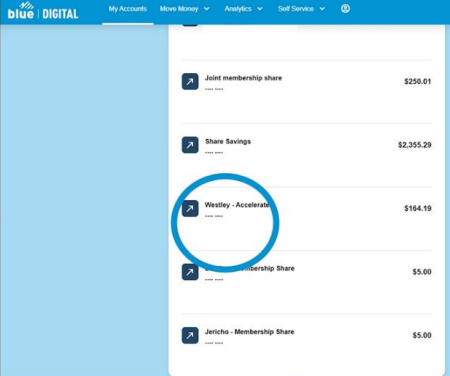
Once you’re logged into Blue Digital, you want to find the account that you want to download the transactions from.
0:15
In this case, we’re going to choose a savings account.
0:16
The first thing that you have to do is tell the system what information you want to download.
0:23
We want to left click the filter.
0:26
Next you have to choose your filters.
0:28
The most easily used is your start date and your end date, so you want to set those filters.
0:35
Always choose a range so the system knows what dates you want to pull from.
0:38
In this example, we’re going to use January 1st through March 14th.
0:42
We’re going to leave everything else as it is, and it’s really important that the next thing you do is left click apply.
0:53
This will set the two dates.
0:55
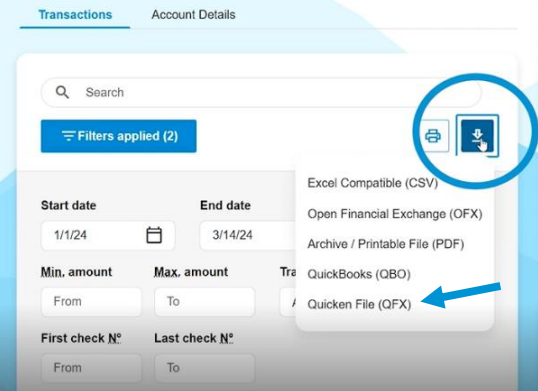
Once you do that, you’ll see that Filters Applied is listed as two.
0:59
Next, you’ll left click the download icon.
1:01
Next you’ll click the Quicken file QFX.
1:05
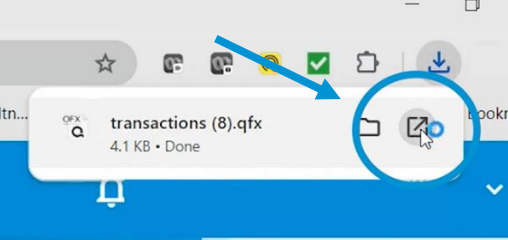
Then on the top right corner of your browser you should see that the file is downloading.
1:10
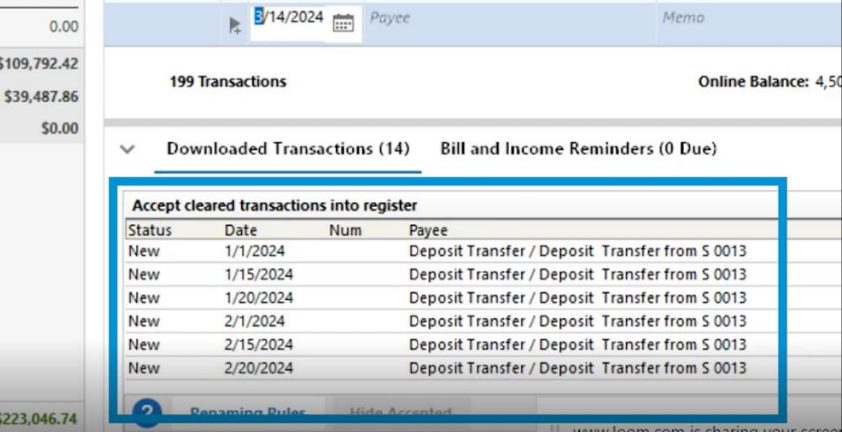
Be sure to have your Quicken open in the background, because once you click the download, it’ll automatically import those transactions into Quicken and it’s easy as that.
Hello and welcome to Blue Digital.
0:03
Today we’re going to talk about how to download our transactions from Blue to Digital into a Quicken file.
0:09
Once you’re logged into Blue Digital, you want to find the account that you want to download the transactions from.
0:15
In this case, we’re going to choose a savings account.
0:16
The first thing that you have to do is tell the system what information you want to download.
0:23
We want to left click the filter.
0:26
Next you have to choose your filters.
0:28
The most easily used is your start date and your end date, so you want to set those filters.
0:35
Always choose a range so the system knows what dates you want to pull from.
0:38
In this example, we’re going to use January 1st through March 14th.
0:42
We’re going to leave everything else as it is, and it’s really important that the next thing you do is left click apply.
0:53
This will set the two dates.
0:55
Once you do that, you’ll see that Filters Applied is listed as two.
0:59
Next, you’ll left click the download icon.
1:01
Next you’ll click the Quicken file QFX.
1:05
Then on the top right corner of your browser you should see that the file is downloading.
1:10
Be sure to have your Quicken open in the background, because once you click the download, it’ll automatically import those transactions into Quicken and it’s easy as that.
1. Log into Blue Digital. Next, LEFT CLICK the account you need to import the transactions from.
2. LEFT CLICK the Filter button. Then SELECT the Date Range. Next, LEFT CLICK the Apply button.
Important: Be sure to add the filter or it will download all transaction history.


3. LEFT CLICK the Download Icon, then LEFT CLICK Quicken File (QFX).
4. Be sure to have Quicken open in the background. When the download is complete, LEFT CLICK the download and it will automatically import the transactions into Quicken.