Begin by logging into Blue Digital on your web browser.
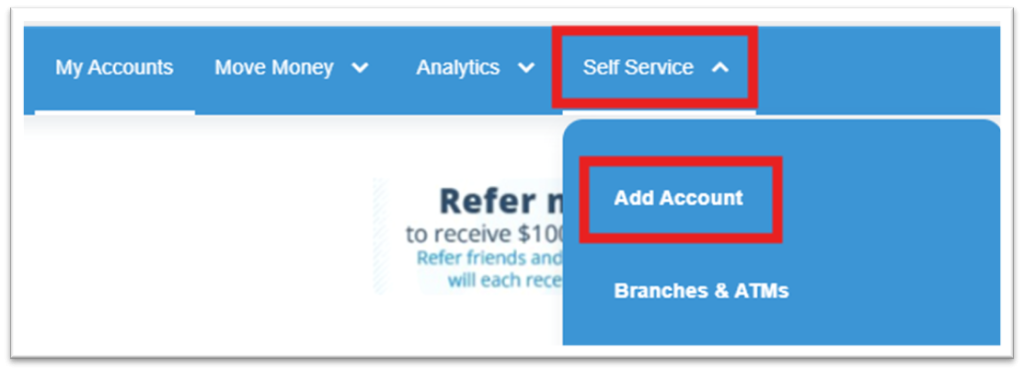
After logging in, select Self Service and a dropdown menu will appear.
Select Add Account.
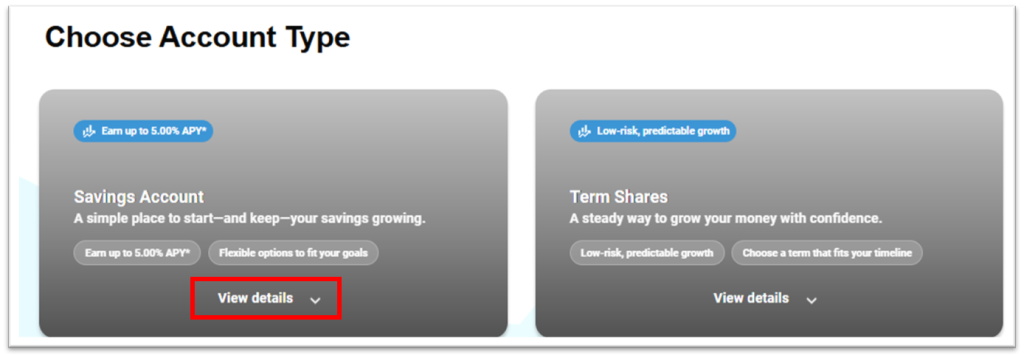
After a moment, two options will appear beneath Choose Account Type.
To add a Savings account, select View details underneath Savings Account.
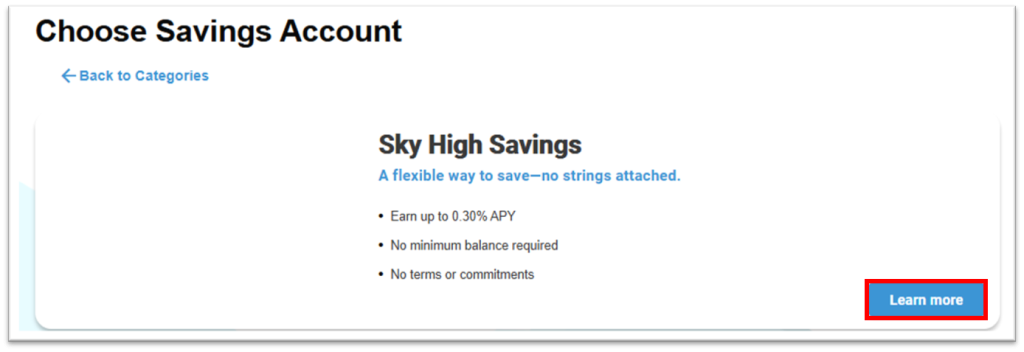
Select Learn more.
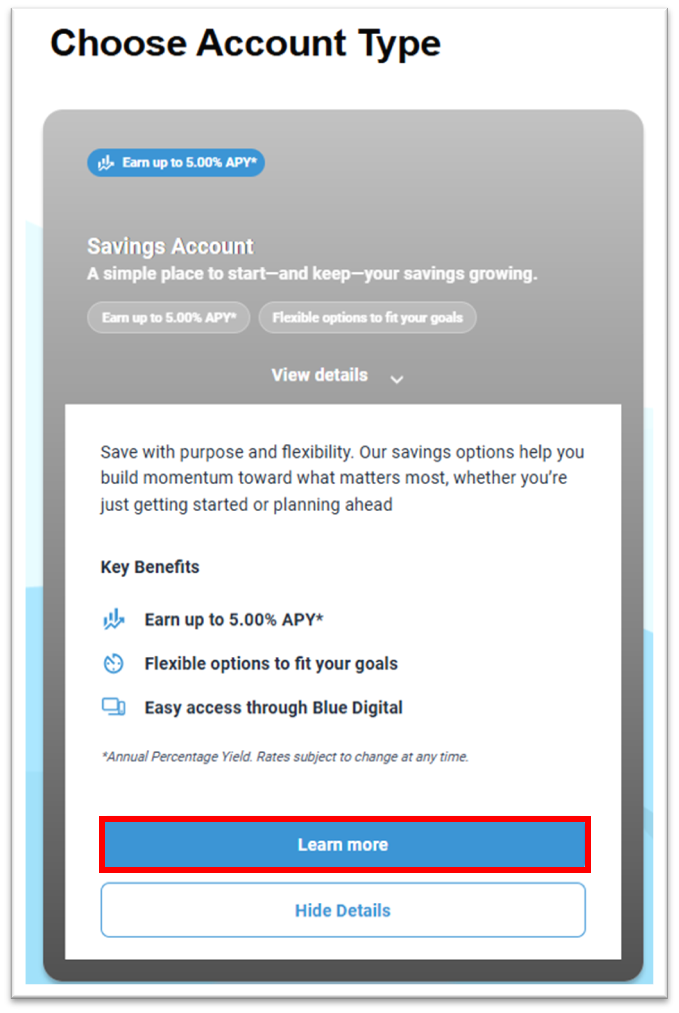
The available savings account types will appear. Select Learn more next to the Savings account type you would like to add.
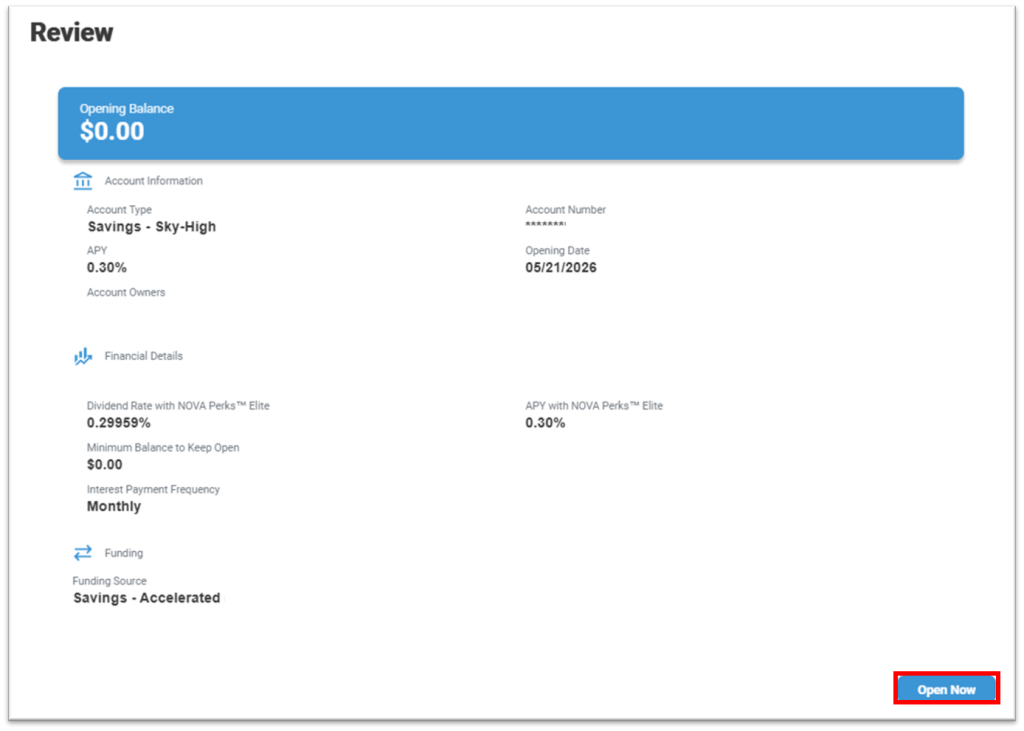
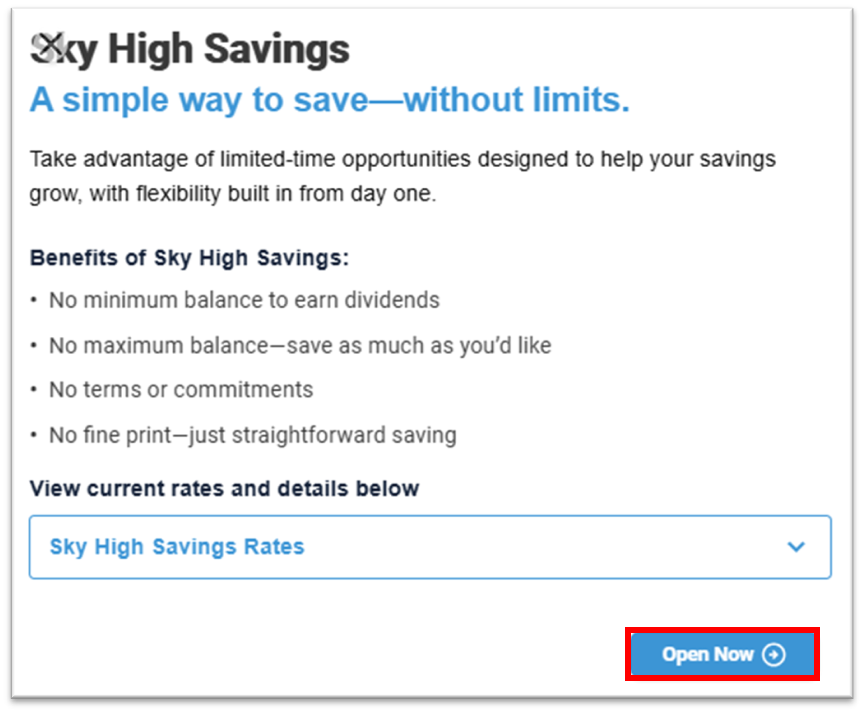
Review the details of the Savings Account, and select Open Now.
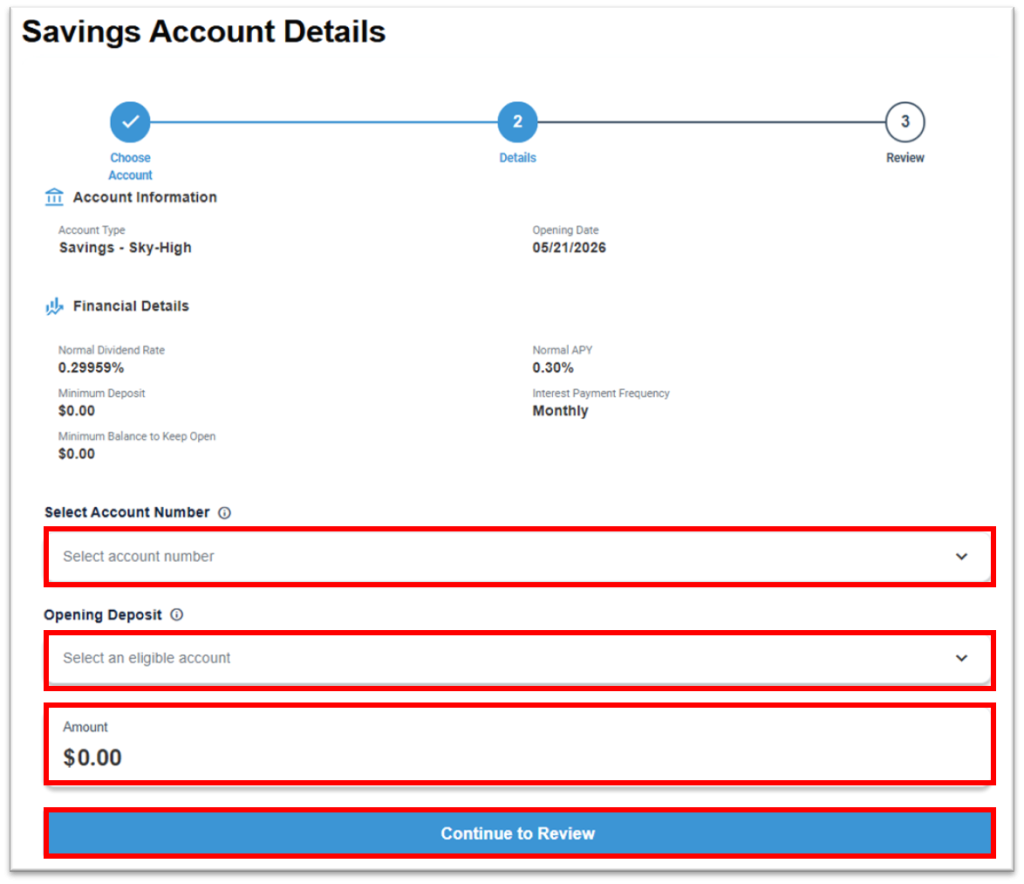
Select the Account Number on which you would like to add the new Savings Account.
Select an existing account from which you would like to move funds for the opening deposit of your new Savings Account, and enter the amount.
Select Continue to Review.
There will be one final screen to review the details of your new Savings Account before opening it. To confirm and open the account, select Open Now.