Video Transcript
0:00
Hello, Let’s talk about linking external accounts.
0:03
This is where you would actually link your Blue account with an account at another financial institution.
0:10
Let’s get started.
0:11
Log into your blue Digital.
0:14
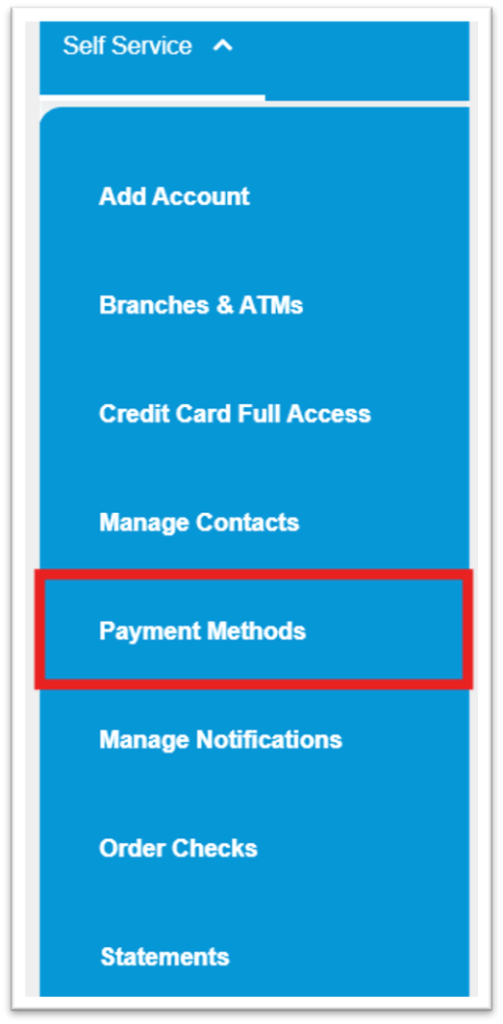
Once you’re logged in, go ahead and click self-service and then click Manage External Accounts.
0:23
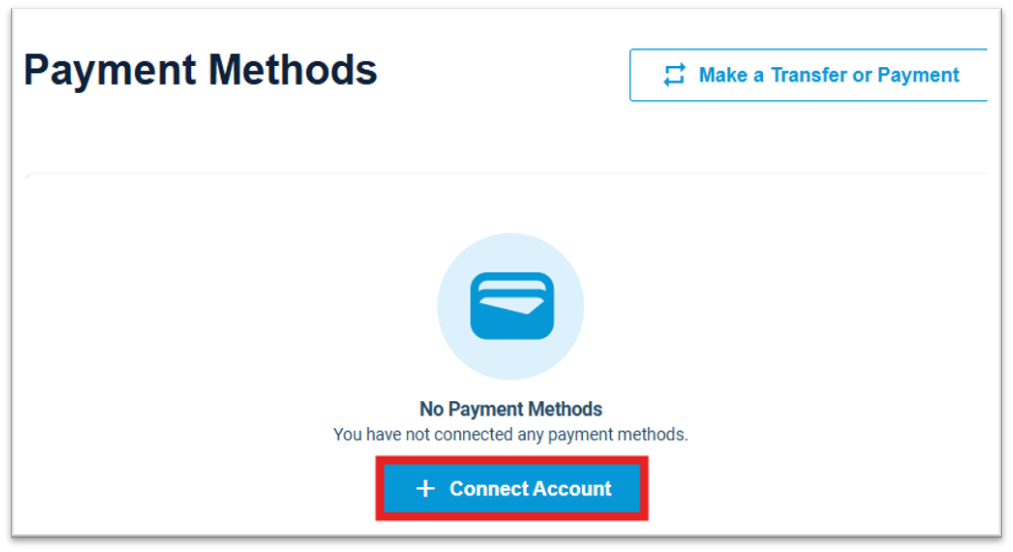
Once this page loads, go ahead and click Connect Account.
0:30
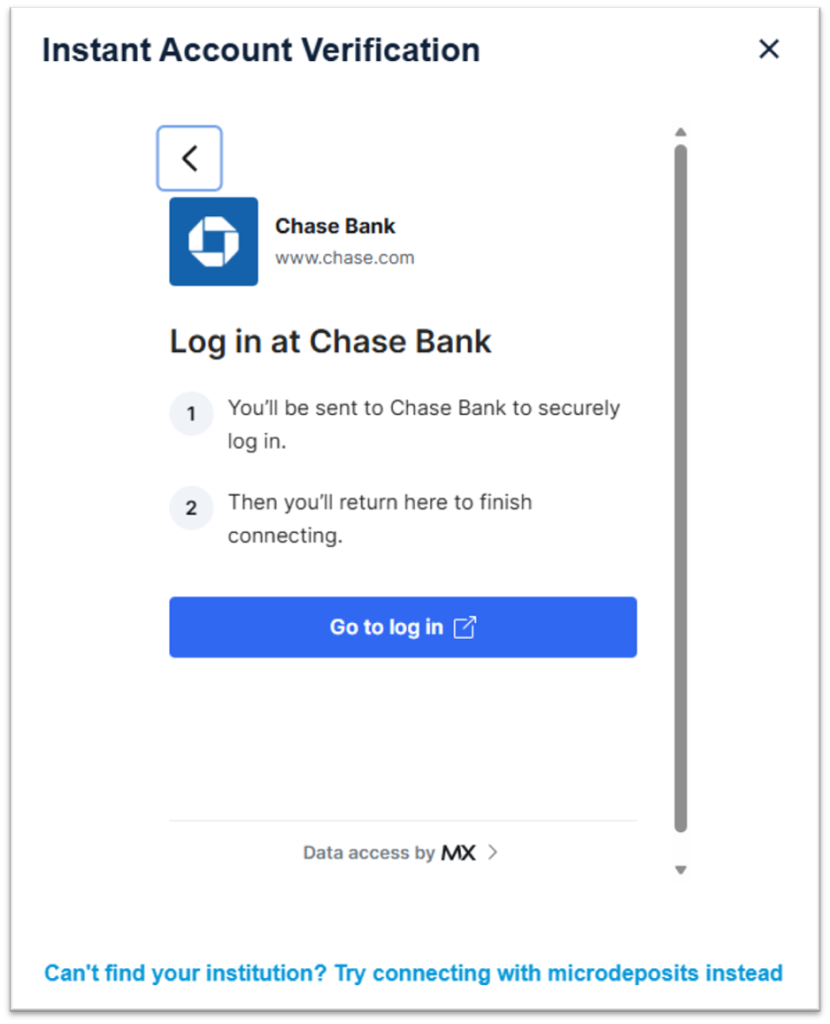
Now you could search your financial institution by name.
0:33
In this example, we’re going to use a test account, MX Bank.
0:37
Once you find your financial institution, go ahead and left click it.
0:40
Enter your financial institution’s credentials.
0:43
So this would be the financial institution you are linking.
0:46
You would put the username for that institution’s login along with the password for that institution, and then left click Continue.
1:00
Next, you choose whether you want to link your checking account or your savings account, then left click continue.
1:08
Once the connection is completed, you’re now linked.
1:12
You’d simply left click continue and then this financial institution would show in your list of connected financial institutions in Blue Digital.
1:19
And it’s as easy as that.
Hello, Let’s talk about linking external accounts.
0:03
This is where you would actually link your Blue account with an account at another financial institution.
0:10
Let’s get started.
0:11
Log into your blue Digital.
0:14
Once you’re logged in, go ahead and click self-service and then click Manage External Accounts.
0:23
Once this page loads, go ahead and click Connect Account.
0:30
Now you could search your financial institution by name.
0:33
In this example, we’re going to use a test account, MX Bank.
0:37
Once you find your financial institution, go ahead and left click it.
0:40
Enter your financial institution’s credentials.
0:43
So this would be the financial institution you are linking.
0:46
You would put the username for that institution’s login along with the password for that institution, and then left click Continue.
1:00
Next, you choose whether you want to link your checking account or your savings account, then left click continue.
1:08
Once the connection is completed, you’re now linked.
1:12
You’d simply left click continue and then this financial institution would show in your list of connected financial institutions in Blue Digital.
1:19
And it’s as easy as that.