
Welcome to Blue Digital.
0:03
Let’s talk about connecting external accounts on your mobile device.
0:11
Go ahead and open your Blue Digital app.
0:13
Once Blue Digital opens, you’ll be on the My Account screen on the bottom.
0:17
Tap Move Money.
0:20
Next tap Connected Accounts.
0:23
Next, tap Connected Accounts again to search for your financial institution.
0:30
Tap Search More Institutions.
0:33
Next, type in your financial institution into the search box.
0:39
Once your financial institution displays, tap your financial institution.
0:43
In this example, we’ll use MX Bank.
0:48
Enter the credentials that you use to log into your financial institutions Online banking, then tap Continue.
1:07
Next, choose checking or savings account.
1:10
Once you’ve made your selection, tap Continue.
1:19
And that’s it.
1:20
Now your other financial institution is now linked to Blue Digital.
1:24
It’s as easy as that.
1. From the My Accounts screen, select “Move Money” at the bottom of the screen
2. Select “Connected Accounts”
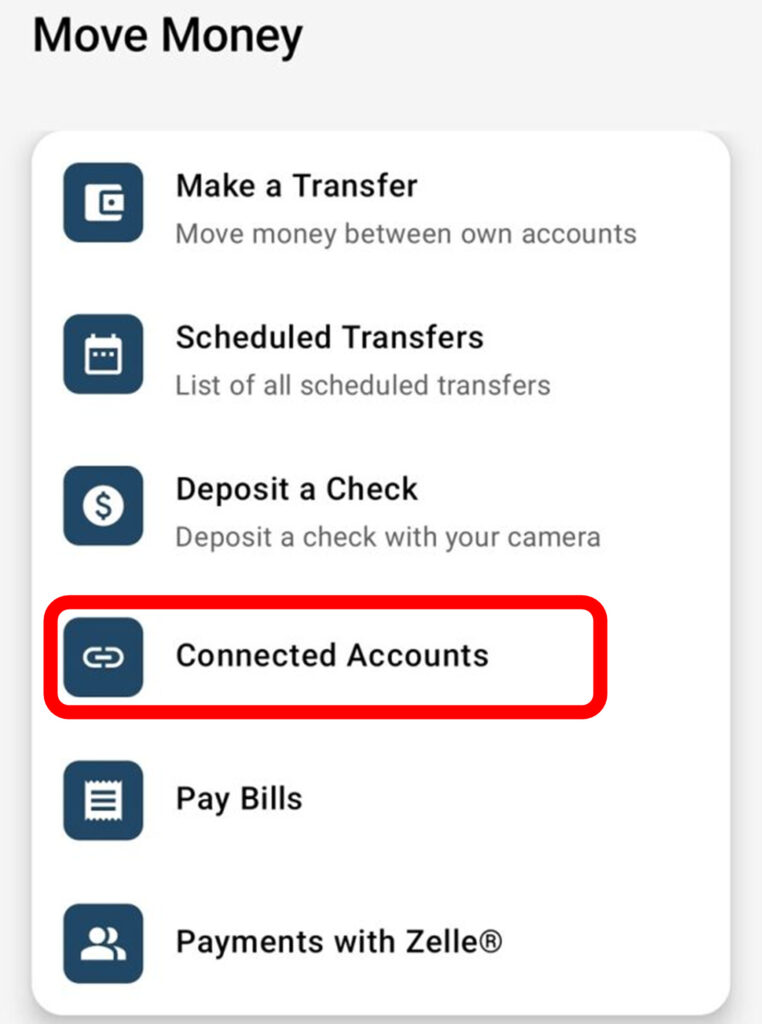
3. Select the “+” icon at the upper right of the screen

4. Select “Search more institutions”
5. Use the search bar to search for your other financial institution
After selecting your other financial institution, you will need to use your login credentials for that institution to connect the account.
Micro Deposit Process
If your other financial institution does not appear using the search bar, use the option at the bottom of the screen to manually add the account using micro deposits.
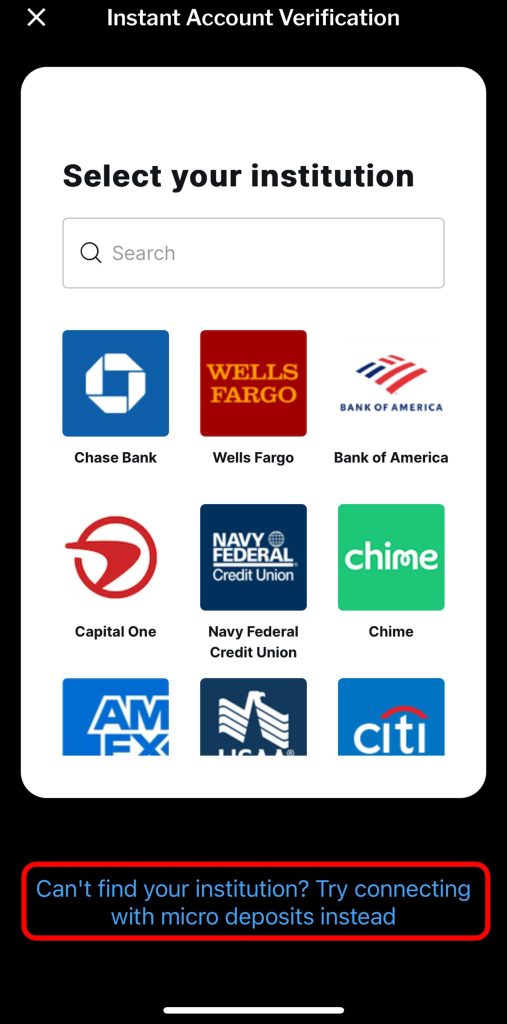
Enter a nickname of your choice for the connected account, the Account Type (savings or checking), the Account Number of the external account, and the routing number of the external Financial Institution, then select “Submit.”
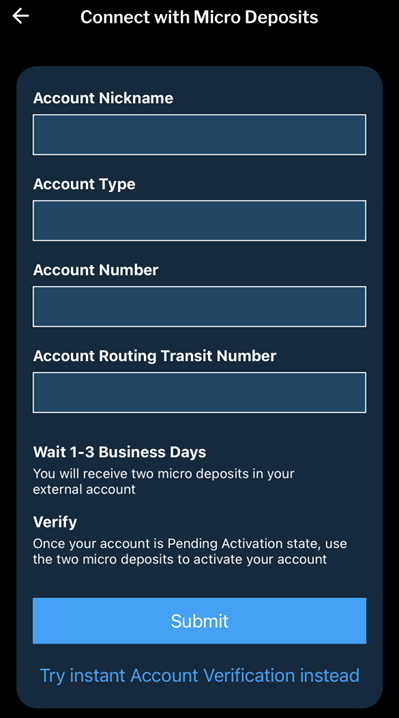
After the two micro deposits are received in your external account (typically within 1-3 business days), return to this screen and you will be asked to enter both of the amounts to connect the account.