
Use the instructions below to open a Sky High Savings account through Blue Digital on desktop or in the mobile app.
Before You Begin
Sign in to Blue Digital and have the account you want to use for your opening deposit ready. Adding a joint owner is optional and depends on the eligible owners shown in Blue Digital.
Desktop Instructions
1. Go to Add Account
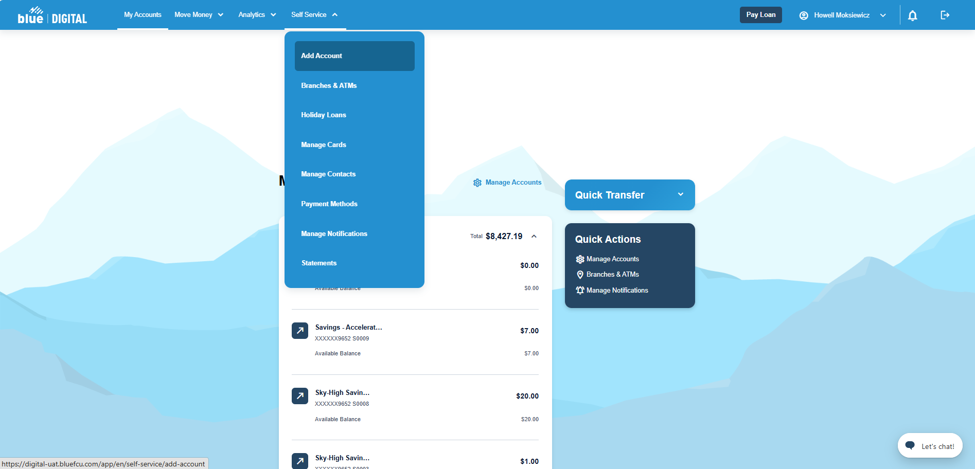
Sign in to Blue Digital on your desktop. Select Self Service from the top menu, then choose Add Account.
2. Choose Savings Account
On the Choose Account Type page, find Savings Account. Select View details, then choose Learn more.

3. Select Sky High Savings
On the Choose Savings Account page, locate Sky High Savings and select Learn more.

4. Review the account
Review the Sky High Savings features and benefits. You can also expand Sky High Savings Rates to view the current APY.